Chapter 3: Usage
This chapter will teach you how to go about daily tasks, as well as configure GoboLinux.
This chapter will teach you how to go about daily tasks, as well as configure GoboLinux.
With Compile, GoboLinux build utility, software sources can be downloaded, compiled and installed in a single step. An example will follow next.
In order to install irssi, a text-based IRC client from the command line, you would type the following instruction:
Depending on the speed of your computer, internet connection and what packages you have installed, Irssi should download and install in a few minutes.
Compile manages the build process using GoboLinux recipes. Each recipe contains a list of build directives and supplemental control files for compiling a particular software library.
Recommended blog articles to read on Compile:
Typically, you can just try the name of the recipe you want from the command line. There is also an online recipe viewer, listing the most recently uploaded recipes first.
Compile has a number of command-line options, which are listed here. The following are especially useful.
When using the --batch or -b automatically attempts to process all
dependencies of the requested program.
The next two options are useful when working with intermittent internet access, or if you’d like to run your compiling jobs at night when you’re asleep.
Calling Compile with the --no-build flag downloads sources only.
Later, in the event that you wish to use the --no-web flag, this will direct
Compile to search to your system’s own download cache and build the sources
found there instead. This commandline switch is obviously very useful if you do
not have a working internet connection for the time being.
Main article: Writing recipes
To use the version of Compile, run
We do not maintain a binary package repository at this time!
Please build your packages from source using Compile.
Binary packages in GoboLinux are precompiled software packages built for the GoboLinux directory tree and made available through the GoboLinux software repository (recipe store). Since these packages are already compiled, you can save the many hours needed to build larger applications. On the other hand, with binary packages you don’t have the ability to set compile flags for optimization or specific architectures.
InstallPackage is the GoboLinux script for
installing binary packages. If you want
InstallPackage to look for the most recent Gimp
package available, you can run
The script will check if the package is available in the GoboLinux repositories.
(See /System/Settings/GetAvailable.conf for the specific URLs scanned. You may
add your own repositories if you desire.)
If you want to select a specific version, you can pass it as the second parameter:
If you downloaded the package and want to install it, run:
The script normally runs interactively, asking about each dependency of the
requested package before installing it. You can avoid these queries by adding
the --batch or -b flag. This is particularly useful with large packages such
as Gimp or Xorg, which have many dependencies.
InstallPackage will warn you if dependencies of a package you are trying to
install are unavailable and ask if you want to continue. This is valuable,
because some software may still work satisfactorily even if a particular plug-in
or other dependency is missing.
See Installing Packages from the LiveCD.
See Removing programs.
Use the UpdateRecipes command to refresh your
local cache of the GoboLinux recipe store.
You can query available updates using the utilities
SuggestUpdates and
SuggestDuplicates. The output of each of
these commands is suitable for piping into commands.
The FindPackage and
GetAvailable commands may also be useful.
Keep in mind that most operations that change the file-system state in Gobo require super user privileges:
UpdateRecipes - Update local copy of recipe storeSuggestUpdates - List packages with an update availableCurrently, there is no way to update packages automatically. This used to be
done with the Freshen script, which is currently not
in working order.
Updates thus need to be installed manually via
InstallPackage or
Compile as appropriate.
In GoboLinux, all programs, whether binary packages or user-compiled software,
are installed into a single directory under the /Programs hierarchy, such as,
for instance, gimp:
Removing this program can be, in theory, as simple as:
But since this leaves behind dangling symlinks, GoboLinux offers the
RemoveProgram utility, which removes the program
and all links pointing to its files in /System/Index.
Sometimes you may want to “turn off” a program temporarily, without erasing it from your hard disk. In other words, you want to remove program’s executables from the execution path, and remove libraries and headers from the lookup path.
In GoboLinux, this can be accomplished by removing the associated symlinks for
/System/Index. The DisableProgram script facilitates this:
The version parameter given here, in this case 3.2.2, is optional. If it is
not provided, the Current link is used to determine the program version to
disable. Also note that the program name is case insensitive, but it appears to
be simpler to use a downcased variant - easier to type at the least.
DisableProgram automatically appends a -Disabled tag to the version name,
so in our case folder 3.2.2 has been renamed to 3.2.2-Disabled. This way,
you can easily distinuish disabled from enabled programs via the file system
alone.
To re-enable the program, all you need to do is recreate the symbolic links:
GoboLinux has a script called RemoveBroken. that
removes dangling symlinks from /System/Index tree. It can be useful to run
after manipulating directories under /Programs.
RemoveBroken takes a list of files, and removes
those that are dangling symlinks. If no arguments are provided, the script takes
filenames from standard input (typically through a pipe).
The usual procedure to clean up dangling links, is
GoboLinux actually performs this task automatically on any file system changes inside
/System/Index. This is done via a Listener
hook. Check out it’s configuration file at /System/Settings/listener.conf for more insight.
For an introduction to Alien packages please refer to Alien Packaging Subsystem.
In order to install a foreign package we can use the following syntax:
For instance, in order to install or update meson you would type:
Compile.conf is the file where you can configure the various paths and URLs used
by Compile.
It is stored at /Programs/Compile/Settings/Compile/Compile.conf – which, once
installed, has a link at /System/Settings/Compile/Compile.conf (if you’re used
to the GoboLinux tree, you should know by now that this is the same as
/etc/Compile/Compile.conf).
These are the usual contents of the file:
Your name here so that credit is added to recipes.
The standard locations for your local Compile files.
Some of the main free software repositories are treated especially: recipes use
these variables in their url declarations, so that you can pick your favorite
mirror without having to edit recipes one by one:
The Compile recipe tree is managed by Git. The git repository and the upstream
branch are both configurable through the following variables:
A variable to set the make command called by Compile. ColorMake provides the
highlighting that GoboLinux has by default:
Next, you many define options to use with the make command. This is especially useful
if you want to run make multi-threaded on multicore CPUs (or for other customisation).
For instance on an 8-thread CPU you might set:
Note that this will fully occupy your CPU, so if you want use your system while
compiling, it might be better to reserve a few cpu threads (eg -j6).
Some environment variables influence the behavior of some GoboLinux tools. You
may want to set them. Just remember that GoboLinux uses zsh (not bash) as its
default shell, so you should edit .zshrc (not .bashrc). Zsh is a
Bourne-style shell, though, so the syntax you’re used to is still valid.
Of course, if you really prefer bash (though we really recommend giving zsh a
try!), you can change your default shell using the chsh command. See the
chsh man page for details.
The $EDITOR variable should be set to your favorite text editor. Whenever a
GoboLinux tool needs to run an editor, it will run the one indicated in this
variable (in fact, this is not a GoboLinux variable, several programs use it).
For now you can neglect this article, since do not maintain a binary package repository at this time.
Please build your packages from source using Compile.
GetAvailable.conf is the file where you can configure paths and URLs used to
locate binary packages.
It is stored at /Programs/Scripts/Settings/Scripts/GetAvailable.conf – which,
once installed, has a link at /System/Settings/Scripts/GetAvailable.conf (if
you’re used to the GoboLinux tree, you should know by now that this is the same
as /etc/Scripts/GetAvailable.conf).
These are the usual contents of the file:
The timeout (in seconds) when trying to fetch the packages list from a sever.
The paths from which local packages will be automatically be found. Notice that
both compressed (e.g. /Depot/Packages/Qt--4.0.0--i686.tar.bz2) and
uncompressed (e.g. /Mount/SquashFS/Programs/Qt/4.0.0) packages can be matched.
The URLS from which lists of official binary packages (packed by some core developer) will be retrieved.
The URLS from which lists of contributed binary packages (contributed by some user, and placed, without garanties, at our servers) will be retrieved.
The URLS from which lists of tracked versions will be retrieved. A tracked version is a program version that actually may not have a correspondent Recipe or binary package, but that is already made available by the program developers
“Since we felt like we were “starting from scratch” and we really wanted to make a system where everything just made sense for us, we also took the time to rethink the boot scripts. I felt the two historical models (System V and BSD) were overkill for our common desktop-machine setup. GoboLinux uses a simpler system: two scripts,
InitandDone, do most of the job. Additional scripts, such asMultiandSingle, take care of the runlevels. These files are simply sequences of commands, prepended by the wordExecand a message string. Here’s an excerpt ofInit:More elaborate tasks such as
SetClockare defined as shell functions in aTasksfile (these tasks can also be called from the command-line using theRunTaskscript). Configurable settings are defined as environment variables in theOptionsfile. The wrapper functionExecallows for a nifty additional feature: boot themes. The boot sequence can look Slackware-like (with the standard error/output messages), RedHat-like (with lots of OK’s), or GoboLinux-like (the latter uses a modified version of the Linux Progress Patch).”— Hisham Muhammad, 2003. Excerpt from “The Unix tree rethought: an introduction to GoboLinux”.
This page describes the boot process and how to configure your GoboLinux system by editing the configuration files used for startup.
The BootDriver script
(/Programs/BootScript/<version>/bin/BootDriver) manages boot-related tasks.
The init program (from the Sysvinit package) running as PID 1 calls
BootDriver as specified in /System/Settings/inittab.
BootDriver first loads the boot theme
file specified in /System/Settings/BootOptions.
Then BootDriver runs the appropriate boot script for the task at hand (startup,
shutdown, etc.)
GoboLinux boot scripts initialize and configure the system, manage daemons, and
perform shutdown. They are located at /System/Settings/BootScripts.
BootUp, the primary startup script, is invoked when you turn on the power
and the system boots. It contains generic initializations common to most
Linux systems. Additional scripts are provided to support particular boot
scenarios.Console runs BootUp and performs initializations required for a
console session.Graphic runs BootUp and starts X to provide a login window.Shutdown is the primary shutdown script, analogous to BootUp. It is used
by the following termination scripts:Reboot runs Shutdown to terminate system services then reboots the
machine.Halt runs Shutdown and turns off the power, if possible. Otherwise it
halts the processor.Each of these scripts contains lines of the form:
For example, to adjust the keyboard delay and repeat rate in the console, you
can add this line to /System/Settings/BootScripts/Console:
GoboLinux also provides “boot tasks” as a more sophisticated way of managing services.
When GoboLinux boots, the boot scripts launch programs to configure the keyboard, set the system clock, etc.
The parameters for calling these programs are placed in
/System/Settings/BootOptions. It
contains entries of the form:
Note that no space is allowed before or after the = character. This is shell
syntax, allowing the options to be imported into the boot scripts using the
source command.
In case you are having issues, you can enable “debug mode” by setting DEBUG=1
inside /System/Settings/BootOptions. A debug log will be saved to
/Data/Variable/log/BootScripts.log.
The following sections document options available in
/System/Settings/BootOptions and /System/Settings/NetworkOptions.
GoboLinux needs to know if your hardware clock is set to GMT or local time.
Specify this by editing the ClockMode option. Set ClockMode=GMT if your
hardware clock is set to GMT. Set ClockMode=LocalTime if your hardware clock
is set to local time.
For obtaining time zone information, Linux applications rely on information
provided by Glibc, the C library. Glibc, on its turn, uses the localtime
symlink in its Settings directory (/Programs/Glibc/Settings/localtime) to
indicate the active time zone. This symlink is created by the installer
according to the time zone you selected. You can set this setting manually, by
pointing the localtime symlink to a different file under
/Programs/Glibc/Current/Shared/zoneinfo.
The ClockMode information is used for the hwclock utility, which is launched at
boot time through the SetClock task.
Fonts in GoboLinux are stored under /System/Index/share/consolefonts and
/System/Index/share/fonts. They provide character typefaces for the Linux
console, the X Window System, and ghostscript, the Linux postscript
interpreter.
Font path configuration for X can be found in /System/Settings/X11/xorg.conf
and /System/Settings/fonts/fonts.conf.
To change the default console font used by GoboLinux, use the ConsoleFont option
in /System/Settings/BootOptions.
You can also change the console font using the setfont utility. See
man setfont for details.
Remember that this setting changes only the console font. On X, applications have their own font settings.
Use the KeymapLayout option in /System/Settings/BootOptions to select an
appropriate console keyboard layout.
The available keymaps are in the KBD package; they are the .map files. You can
set the console keyboard layout at any time by running loadkeys. For example, to
set the Dvorak keymap, just type in:
The MouseType and MouseDevice options in /System/Settings/BootOptions
configure mouse support on the console. They are disabled by default.
With the window manager running, you can
change keyboard mappings and display settings using setxkbmap, xmodmap, and
xset tools. To select a Dvorak keyboard layout, type setxkbmap dvorak in a
terminal. These commands can also be placed in $HOME/.xinitrc.
For persistent configuration, you could define this inside a
/System/Settings/X11/xorg.conf.d/00-keyboard.conf file, as you would on other
Linux distro’s, for example consult
ArchLinux wiki → Xorg/Keyboard configuration.
The keyboard layout for programs running under the window manager is mapped
according the InputDevice section in /System/Settings/xorg.conf when the
graphic display (X server) starts.
Some desktop environments also offer graphical tools for setting the keyboard layout.
Through the use of Udev, GoboLinux is capable of loading kernel modules (e.g. device drivers) automatically at boot. In cases Udev doesn’t load some wanted drivers, the user can explicitly request them.
One way is to edit /System/Settings/modprobe.conf (similar to other Linux
distributions), however a simpler way in GoboLinux is to list desired modules in
/System/Settings/BootOptions.
For instance, this is how to load the i810_audio
audio driver and sk98lin ethernet driver:
The startup scripts read this array and run modprobe each line. The entries may include additional parameters.
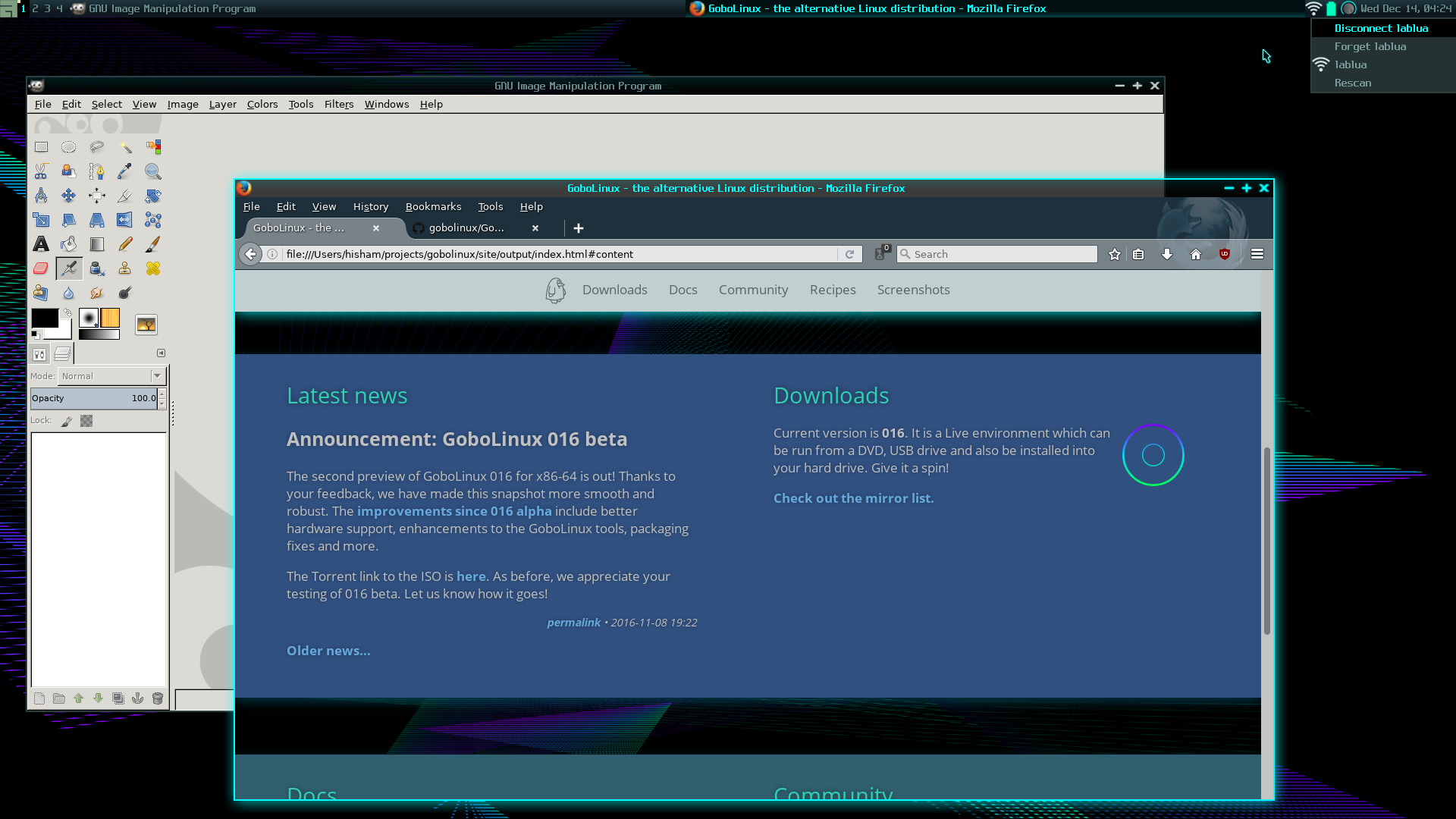
If you are using Wi-Fi, just select your network using the GoboNet widget in the AwesomeWM system tray:
If you have a wired network, initialize it on boot using standard Linux commands in your bootscripts sequence.
First, check which are your network interfaces typing
You should have a network interface named something like eth0 or enp0s3.
Edit the /System/Settings/BootScripts/BootUp script. If you are using DHCP,
just add this:
If you have a static network configuration, place commands similar to the
following in BootUp.
The nameserver can be specified in /etc/resolv.conf
(/System/Settings/resolv.conf). To use Google’s nameservers, you can edit
resolv.conf to:
If you wish to use an automated login, there are several ways to achieve this goal, but in general this depends on your login manager or desktop environment.
Some desktop environments allow you to enable “auto-login” in their system settings GUI. Else configure this according to the documentaion in your login manager in its configuration files.
If you do not use such a login manager or desire a simplistic non-GUI based
solution, one way is to use rungetty.
nano /etc/inittab) find the line which
includes tty1 (it’s your first terminal, the default showing up on login).agetty in there - change this agetty line to
rungetty tty1 --autologin your_username.Of course, replace “your_username” with the user you want to login as.
Using another tty than 1 may be useful too.
GoboLinux comes with CUPS installed by default.
This information might be outdated as our latest release uses PulseAudio. Applicability has to be verified.
Note that ALSA is muted by default, to automatically save and restore changes done in e.g. alsamixer, add these lines to your boot scripts.
Your boot scripts can make use of “boot tasks”, which are little service scripts
that can be shipped by programs. A program includes its tasks under
Resources/Tasks, and they’re linked in /System/Tasks. This is roughly
equivalent to the /etc/init.d scripts found in many distributions.
You can launch or stop tasks from the command line, using
StartTask and StopTask.
For example, the following command will load the SSH daemon:
Within boot scripts, you don’t need to use these launchers, but you have to add a parameter indicating whether the task is being started or stopped:
Strictly speaking, a task is simply a shell script put in the appropriate
directory, which accepts start and stop parameters. In this imaginary
example, one could have a file /Programs/Foo/1.0/Resources/Tasks/Foo with
these contents:
It’s a good idea to use the above example as a template for tasks you create.
The [Ss] syntax ensures that both start and Start are recognized, which is
nice to avoid typos.
GoboLinux is flexible enough to offer you a choice of themes to control how your GoboLinux looks when starting up.
You can select a theme by setting BootTheme=<ThemeName> in
/System/Settings/BootOptions. Available themes include:
CheckList - Shows tasks and others that depend on them, then checks
them off.Hat - A Red-Hat look-alike: lots of colored [ OK ]s and [FAILED]s
are echoed as things are initialized.Progress, Progress-II, or Progress-III - Fancy themes that
stress your terminal with tons of escape codes.Quotes - Prints short random quotes to indicate success or failure of
every initialized item.Slack - This theme is inspired by the feel of old-school Slackware
boots: no distracting messages, no colors, no special effects.Check /Programs/BootScripts/Current/Themes/ to see all the available themes.
You can use the TestBootTheme script to see how a boot theme looks like without actually rebooting your computer. TestBootTheme is described on section Testing a boot theme.
You can also set the boot theme from GRUB by adding BootTheme=<ThemeName> to
the boot line. This can be handy if BootOptions file specifies a broken or
nonexistent theme, because GoboLinux will not boot without a valid one.
Physically, a GoboLinux boot theme is a single script file located in
/Programs/BootScripts/*<version>*/Themes.
The theme file is loaded by the boot scripts core, and is called once for every runlevel change. Although interesting stuff can be done in the script body, a compliant boot script has only to implement the following functions:
ThemeInitThemeFileThemeBeforeThemeAfterThemeFinishThese functions are the hotspots that glue the theme and the boot scripts core together.
This section explains how you can create your own boot script theme.
Section “The boot scripts anatomy” already explained that a theme is a single script file. In fact, if you really want, you can create a theme that spreads through multiple files (but this is not necessarily a good idea). The point here is that one file is enough. This file implements a five functions: ThemeInit, ThemeFinish, ThemeBefore ThemeAfter, and ThemeFile.
So, if you want to create a boot theme for GoboLinux, all you have to do is to
create a script file like
/Programs/BootScripts/*<version>*/Themes/MyVeryOwnBootTheme that implements
those functions (and optionally something in the script body) with all the bells
and whistles you want.
This section describes how each of the obligatory theme functions must be implemented.
This, as the name implies, is the standard location to perform initializations.
Below is an example on how you can use the standard $PREVLEVEL variable (from
the Sysvinit init program) to echo some message when system initializes or
goes down.
GoboLinux boot scripts work by processing a sequence of files (again, check
section
“Customizing the initialization”
for more details). Before starting to process each of these files, the boot
scripts core will call ThemeFile passing as the first (and only) parameter the
name of the file that is starting to be processed. Needless to say, you are not
obligated to give feedback on what file is being processed (the “Hat” theme,
example, does nothing in its implementation of ThemeFile.
A very simple example implementation of ThemeFile follows.
These functions wrap the execution of commands. ThemeBefore runs before a
program is executed and ThemeAfter, as expected, afterwards.
ThemeBefore is given two parameters: an identifier and a message. The
identifier is a numeric id so you can match calls to ThemeBefore and
ThemeAfter. Likewise, ThemeAfter is given two parameters, the identifier and
a numeric result code, indicating success (zero) or failure (other values).
If your theme supports only sequential booting (ie, does not use Fork and
Wait to parallelize the execution of the boot tasks), you can ignore the
identifier – most themes do, as sequential boots are more common and that makes
the themes simpler. On parallel boot, however, programs can end in a different
order than they were started; with some escape code trickery, one can represent
graphically the intrincacies of parallel booting (the CheckList theme is an
attempt at that).
Here’s a quick example of ThemeBefore and ThemeAfter:
The ThemeFinish function is called as the last step in a runlevel switch
(after everything else was done). Hence, this is the place to add any
finalization code. A common task performed by ThemeFinish is writing to the
issue file, whose contents are displayed on the screen just before the login
prompt. The issue file name is passed as the first (and only) ThemeFinish
parameter.
The following example shows a sample ThemeFinish implementation that just
writes an issue file that clears the screen.
Fortunately you don’t have to reboot your computer to test every feature you add
to your boot theme. The TestBootTheme script is your friend. Just run it
passing your boot script name as a parameter:
This will simulate a boot procedure with lots of things getting executed. Some
of them will be quiet, some will echo a lot of text, some will succeed, some
will fail… Just press enter when it ends up at the “login” prompt to finish.
If you don’t give it a Theme name, it will output the list of available Themes
from /Programs/BootScripts/Current/Themes/ instead.
Of course, this script is also useful to see how the various boot themes are, so that you can choose which one is your favorite.
Some themes may not display correctly in an Xterm/Konsole/other graphical terminal, or with a non-standard console font. It’s probably best to run TestBootTheme in the same environment you boot in!
At the moment the only officially supported desktop environment is AwesomeWM!
If you would like to see support for other desktop environments, possibly wayland based, feel free to contribute this work. There are some recipes available for compiling sway. This is doable. Feel free to ask for support.
We also have recipes for XFCE but we do not recommend fiddling with these if you’re a beginner. Unless you know exactly what you are getting into.
GNOME and KDE are currently out of scope and we will not offer any support in this regard.
At the moment the only officially supported desktop environment is AwesomeWM!
Awesome is the current desktop manager for Gobolinux.
Several modules have been created for Awesome for use by Gobolinux: