Configuring the Boot Process
This page describes the boot process and how to configure your GoboLinux system by editing the configuration files used for startup.
General architecture
The BootDriver script
(/Programs/BootScript/<version>/bin/BootDriver) manages boot-related tasks.
The init program (from the Sysvinit package) running as PID 1 calls
BootDriver as specified in /System/Settings/inittab.
BootDriver first loads the boot theme
file specified in /System/Settings/BootOptions.
Then BootDriver runs the appropriate boot script for the task at hand (startup,
shutdown, etc.)
Boot Scripts
GoboLinux boot scripts initialize and configure the system, manage daemons, and
perform shutdown. They are located at /System/Settings/BootScripts.
BootUp, the primary startup script, is invoked when you turn on the power and the system boots. It contains generic initializations common to most Linux systems. Additional scripts are provided to support particular boot scenarios.Consoleruns BootUp and performs initializations required for a console session.Graphicruns BootUp and starts X to provide a login window.
Shutdownis the primary shutdown script, analogous to BootUp. It is used by the following termination scripts:Rebootruns Shutdown to terminate system services then reboots the machine.Haltruns Shutdown and turns off the power, if possible. Otherwise it halts the processor.
Each of these scripts contains lines of the form:
For example, to adjust the keyboard delay and repeat rate in the console, you
can add this line to /System/Settings/BootScripts/Console:
GoboLinux also provides “boot tasks” as a more sophisticated way of managing services.
Configuration options
When GoboLinux boots, the boot scripts launch programs to configure the keyboard, set the system clock, etc.
The parameters for calling these programs are placed in
/System/Settings/BootOptions. It
contains entries of the form:
Note that no space is allowed before or after the = character. This is shell
syntax, allowing the options to be imported into the boot scripts using the
source command.
Tip: Debug Mode
In case you are having issues, you can enable “debug mode” by setting DEBUG=1
inside /System/Settings/BootOptions. A debug log will be saved to
/Data/Variable/log/BootScripts.log.
The following sections document options available in
/System/Settings/BootOptions and /System/Settings/NetworkOptions.
Clock mode
GoboLinux needs to know if your hardware clock is set to GMT or local time.
Specify this by editing the ClockMode option. Set ClockMode=GMT if your
hardware clock is set to GMT. Set ClockMode=LocalTime if your hardware clock
is set to local time.
For obtaining time zone information, Linux applications rely on information
provided by Glibc, the C library. Glibc, on its turn, uses the localtime
symlink in its Settings directory (/Programs/Glibc/Settings/localtime) to
indicate the active time zone. This symlink is created by the installer
according to the time zone you selected. You can set this setting manually, by
pointing the localtime symlink to a different file under
/Programs/Glibc/Current/Shared/zoneinfo.
The ClockMode information is used for the hwclock utility, which is launched at
boot time through the SetClock task.
Console setup
Fonts
Fonts in GoboLinux are stored under /System/Index/share/consolefonts and
/System/Index/share/fonts. They provide character typefaces for the Linux
console, the X Window System, and ghostscript, the Linux postscript
interpreter.
Font path configuration for X can be found in /System/Settings/X11/xorg.conf
and /System/Settings/fonts/fonts.conf.
To change the default console font used by GoboLinux, use the ConsoleFont option
in /System/Settings/BootOptions.
You can also change the console font using the setfont utility. See
man setfont for details.
Remember that this setting changes only the console font. On X, applications have their own font settings.
Keymap
Use the KeymapLayout option in /System/Settings/BootOptions to select an
appropriate console keyboard layout.
The available keymaps are in the KBD package; they are the .map files. You can
set the console keyboard layout at any time by running loadkeys. For example, to
set the Dvorak keymap, just type in:
Mouse
The MouseType and MouseDevice options in /System/Settings/BootOptions
configure mouse support on the console. They are disabled by default.
Graphical display setup (X server)
Keymap
With the window manager running, you can
change keyboard mappings and display settings using setxkbmap, xmodmap, and
xset tools. To select a Dvorak keyboard layout, type setxkbmap dvorak in a
terminal. These commands can also be placed in $HOME/.xinitrc.
For persistent configuration, you could define this inside a
/System/Settings/X11/xorg.conf.d/00-keyboard.conf file, as you would on other
Linux distro’s, for example consult
ArchLinux wiki → Xorg/Keyboard configuration.
The keyboard layout for programs running under the window manager is mapped
according the InputDevice section in /System/Settings/xorg.conf when the
graphic display (X server) starts.
Some desktop environments also offer graphical tools for setting the keyboard layout.
Kernel modules
Through the use of Udev, GoboLinux is capable of loading kernel modules (e.g. device drivers) automatically at boot. In cases Udev doesn’t load some wanted drivers, the user can explicitly request them.
One way is to edit /System/Settings/modprobe.conf (similar to other Linux
distributions), however a simpler way in GoboLinux is to list desired modules in
/System/Settings/BootOptions.
For instance, this is how to load the i810_audio
audio driver and sk98lin ethernet driver:
The startup scripts read this array and run modprobe each line. The entries may include additional parameters.
Network configuration
Wi-Fi
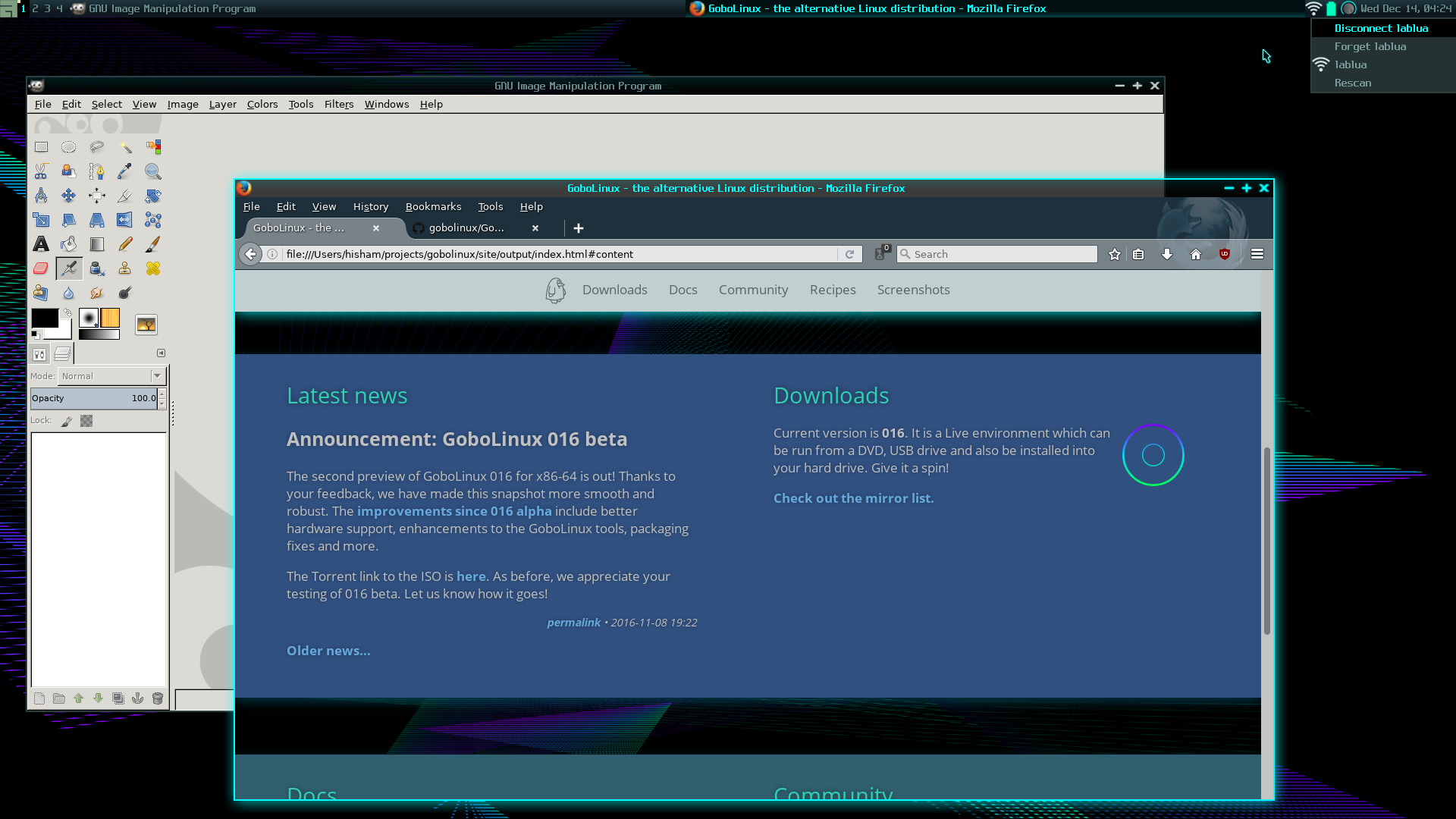
If you are using Wi-Fi, just select your network using the GoboNet widget in the AwesomeWM system tray:
Wired network
If you have a wired network, initialize it on boot using standard Linux commands in your bootscripts sequence.
First, check which are your network interfaces typing
You should have a network interface named something like eth0 or enp0s3.
Edit the /System/Settings/BootScripts/BootUp script. If you are using DHCP,
just add this:
If you have a static network configuration, place commands similar to the
following in BootUp.
The nameserver can be specified in /etc/resolv.conf
(/System/Settings/resolv.conf). To use Google’s nameservers, you can edit
resolv.conf to:
Automated login
If you wish to use an automated login, there are several ways to achieve this goal, but in general this depends on your login manager or desktop environment.
Some desktop environments allow you to enable “auto-login” in their system settings GUI. Else configure this according to the documentaion in your login manager in its configuration files.
If you do not use such a login manager or desire a simplistic non-GUI based
solution, one way is to use rungetty.
- In your inittab file (for example,
nano /etc/inittab) find the line which includestty1(it’s your first terminal, the default showing up on login). - Now, you will see
agettyin there - change thisagettyline torungetty tty1 --autologin your_username.
Of course, replace “your_username” with the user you want to login as.
Using another tty than 1 may be useful too.
Printers
GoboLinux comes with CUPS installed by default.
Audio
Note
This information might be outdated as our latest release uses PulseAudio. Applicability has to be verified.
Note that ALSA is muted by default, to automatically save and restore changes done in e.g. alsamixer, add these lines to your boot scripts.